

Put the Hub on your phone’s home screen, so the Community, Your Next Step and your account are one tap away. It’s free, it takes about a minute, and there’s nothing to download from an app store.
You’re using the Hub app. Turn on notifications below, so you never miss a reply.
It opens straight into the Community. If nothing happens, follow the steps below.
On an iPhone
- Open this page in Safari. If you’re in another app or browser, copy the link and paste it into Safari.
- Tap Open the Hub below and sign in.
- Tap the Share button (the square with an arrow pointing up), then Add to Home Screen.
- If you see Open as Web App, make sure it’s switched on. Then tap Add.
- Open the Hub from the Film Academy icon on your home screen. You may need to sign in once more.
On an Android Phone
- Tap Open the Hub below, in Chrome, and sign in.
- Open the Community menu and tap Install App. Or tap Chrome’s ⋮ menu, then Install app or Add to Home screen.
- Tap Install. The Film Academy icon appears on your home screen.
Reading This on a Computer?
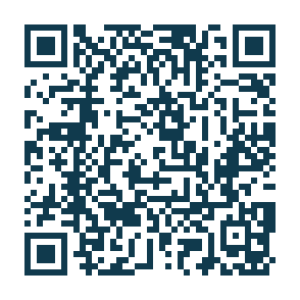
Scan this code with your phone’s camera to open this page on your phone.
Turn On Notifications
Open the app, then tap Turn On Push Notifications in the Community and choose Allow. You’ll hear when someone comments on your post, replies to you or mentions you. You can change what you hear about at any time in your notification settings.
On an iPhone, notifications work once the Hub is on your home screen.
Good to Know
- It’s the Hub you know: the same account, the same two-step sign-in and the same friendly, moderated Community.
- Notifications can show a preview on your lock screen. You can switch previews off in your phone’s notification settings.
- Not registered yet? Register with Our Hub first.
Stuck? Ask us a question and we’ll help.